How to Set Up eBay Business Policies (And Automate Your Listings)
A complete, step-by-step guide to configuring your Payment, Shipping, and Return policies on eBay so you can fully automate your listings with SellBotAI.
If you are scaling your eBay store, manually entering shipping weights, return rules, and payment methods for every single item is a massive waste of time.
That is where eBay Business Policies come in. They allow you to create customizable templates for your Payment, Shipping, and Return rules. More importantly, if you are using automation tools like SellBotAI, having business policies set up is completely mandatory so the AI knows how to route your generated listings.
Step 1 The Opt-In Hurdle
Most new sellers do not realize that Business Policies are hidden by default. Before you can create a single policy, you have to explicitly tell eBay you want to turn the feature on.
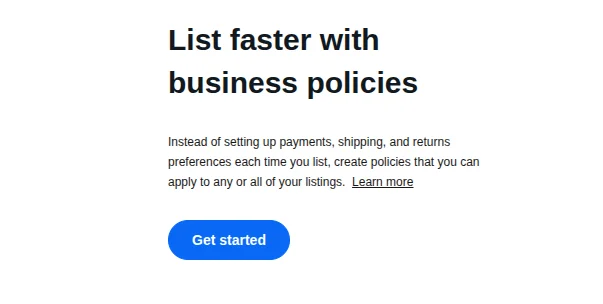
Once activated, you can always manage your templates by visiting the Manage Business Policies dashboard.
Step 2 Set Up eBay Managed Payments
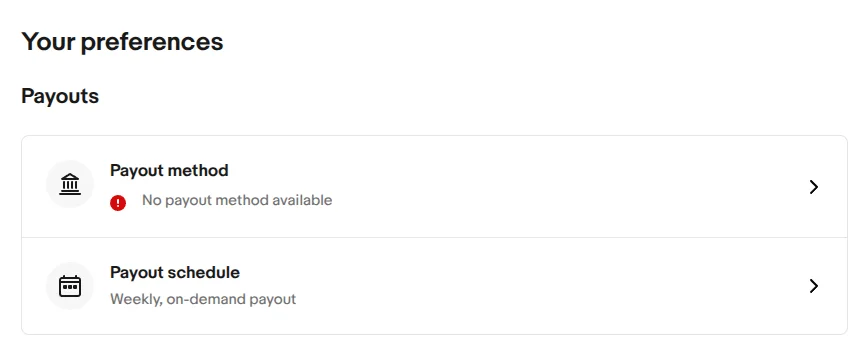
Before you can dictate how buyers pay you, you need to ensure eBay knows how to pay you. eBay manages all checkouts directly through their platform.
Navigate to the Seller Hub Overview, click on the Payments tab, and link your checking account for payouts.
Step 3 Create Your Three Core Policies
From your Business Policies dashboard, click the blue Create policy dropdown. You must create at least one of each of the following three templates:

1. The Payment Policy
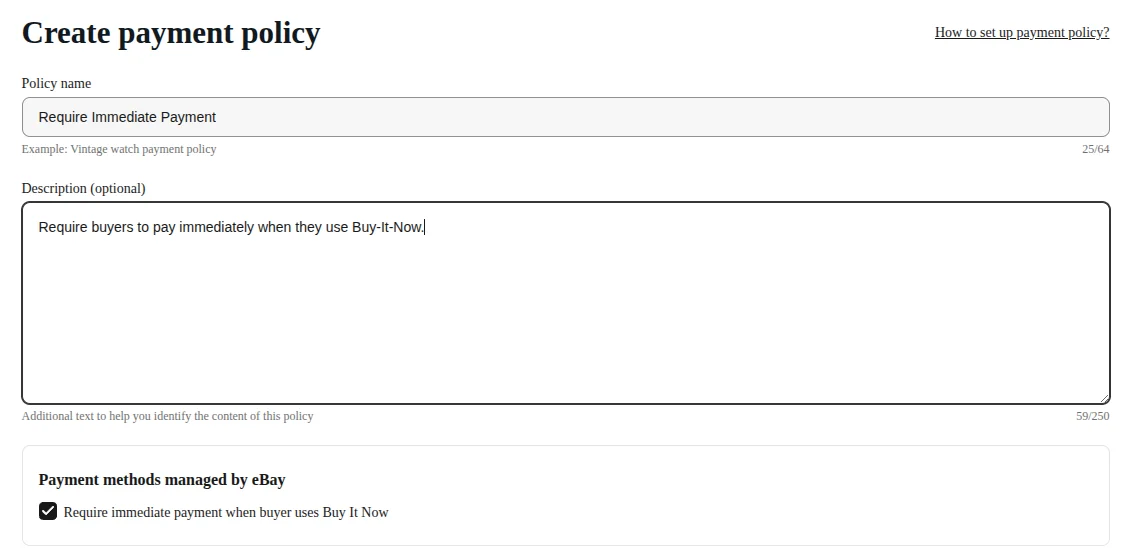
This is the easiest policy to create because eBay handles the heavy lifting.
- Name: "Standard Managed Payments"
- Settings: Check the box that says "Require immediate payment when buyer uses Buy It Now." This prevents buyers from claiming an item and holding it hostage without paying.
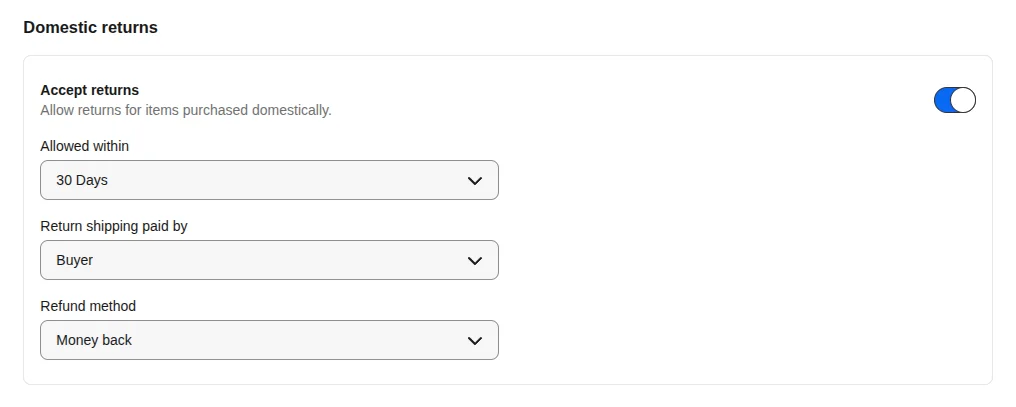
2. The Return Policy
eBay’s algorithm heavily favors sellers who offer generous returns, but you should only take on what you are comfortable with.
- Name: "30-Day Returns (Buyer Pays)"
- Settings: Select "Returns Accepted," choose "30 Days," and set the return shipping to be paid by the Buyer.
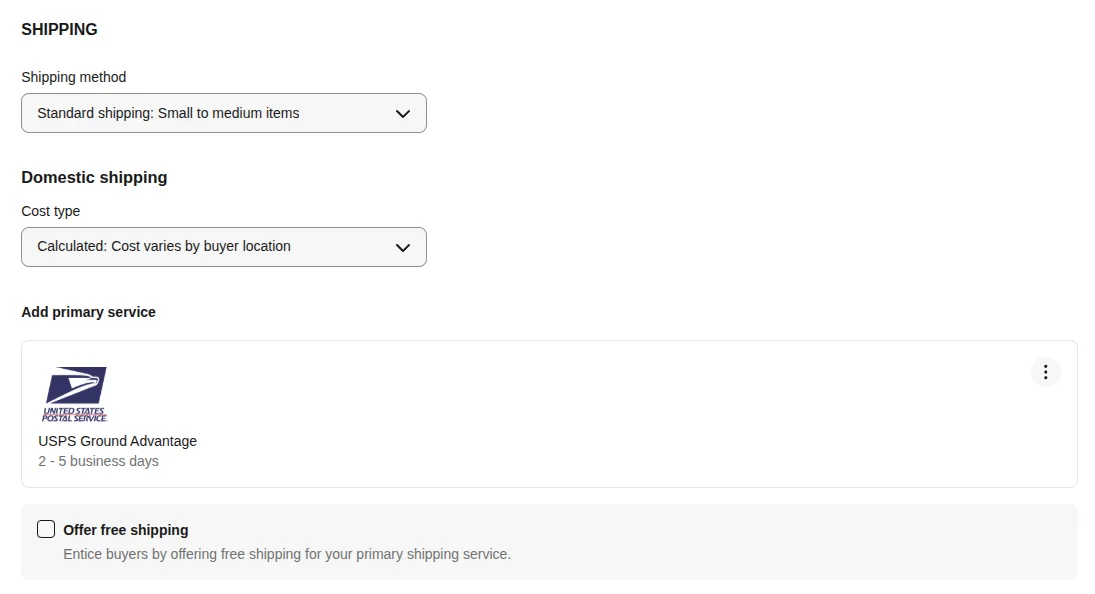
3. The Shipping Policy (Keep It Simple)
If you do not want to overthink box dimensions and postal zones right now, use the Calculated Shipping method.
- Name: "Standard Calculated - USPS Ground"
- Settings: Choose Calculated: Cost varies by buyer location.
- Service: Select USPS Ground Advantage (the cheapest, most reliable domestic option).
- Handling Time: Set this to 1 or 2 business days—whatever you can realistically manage without fail.
Step 4 Sync Your Policies to SellBotAI
If you were blocked from publishing a draft by the missing policies warning banner, you just need to tell the app to refresh your data now that they are created.

Navigate to your Settings dashboard in SellBotAI. Look for the Refresh from eBay button in the top right corner.